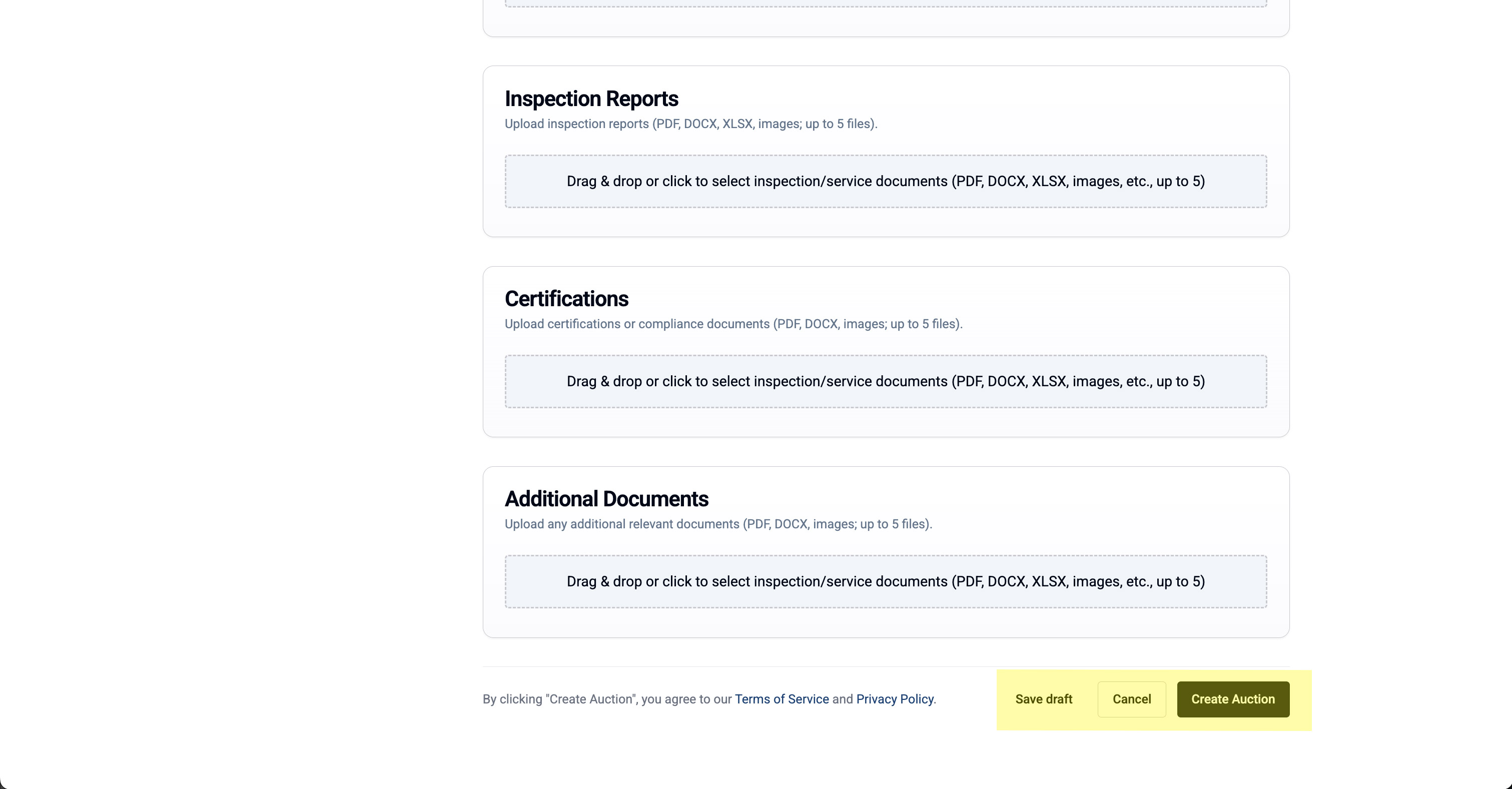
Create an Auction
List your medical equipment for sale on Meditech Auction. Follow this guide to create a professional listing that attracts buyers.
Step 1: Open the Create Auction Form
- Click "Create an Auction" in the left menu under "Selling"
- The auction creation form will open
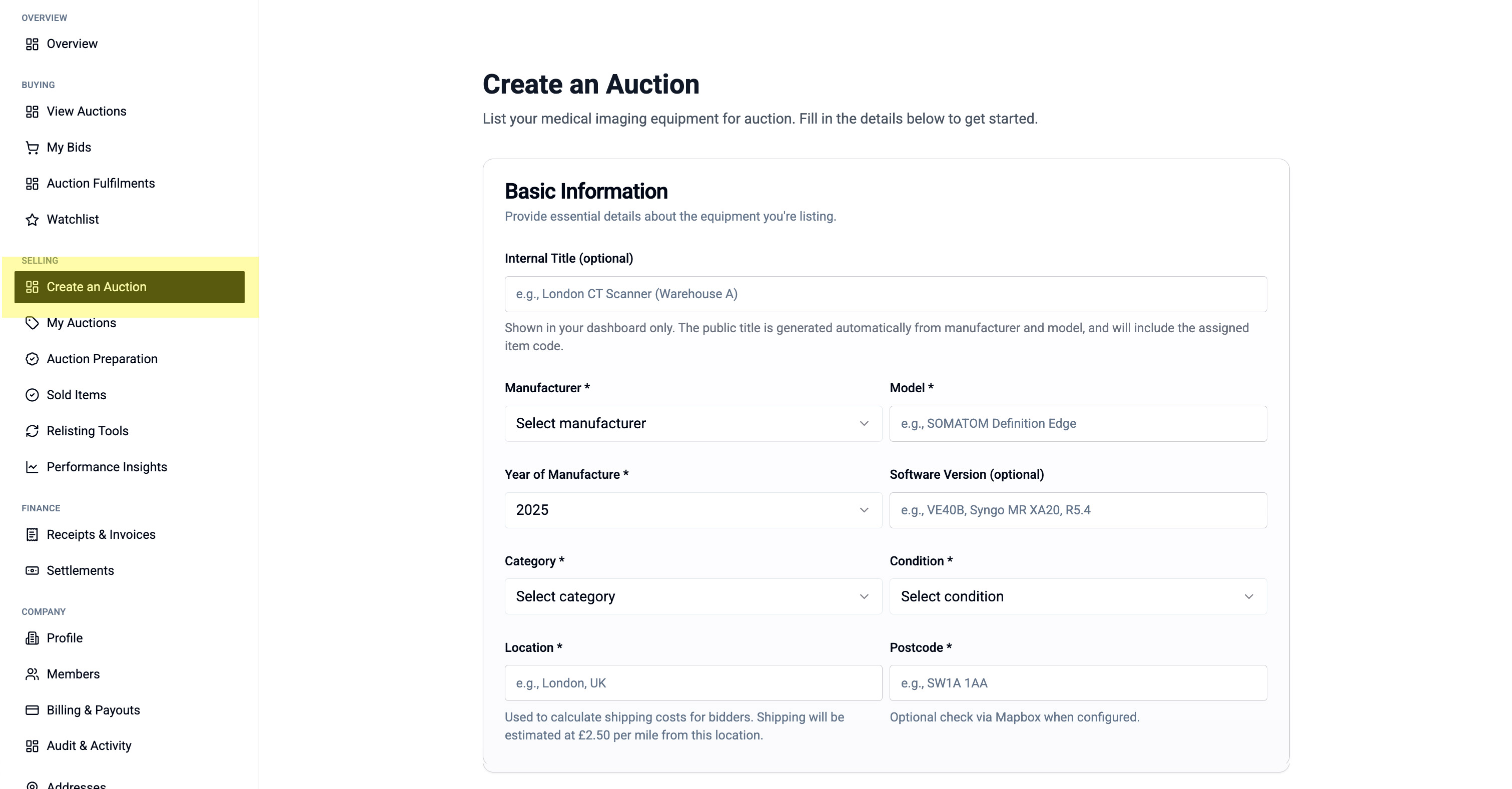
Step 2: Fill in Equipment Details
Basic Information:
- Internal File/Lot number (your reference)
- Manufacturer (e.g., Siemens, GE, Philips)
- Model name
- Year of Manufacture
- Category (select from dropdown)
- Condition (select from dropdown)
- Location/Postcode
Additional Information
- Has the items ever bee used with animals
- Would you allow site visits
- Do you require restricted bidding on the auction
This option allows you to add a restriction notice to your auction. Buyers will be required to accept the restriction in order to bid on an item.
Description: Write a clear description of the equipment including:
In order to help you create a description of your item, we have added AI tools to assist in the creation of a description. The system will take in to account the Manufacturer, Model, Year, Category, Condition, Mobility and any additional information that you have about the item such as:
- Probes included
- Coil sets
- Tube age / count
- Detectors
- Installed software options
- Included accessories
- Service history
- Upgrades
- Additional information
This information will be used to construct your description.
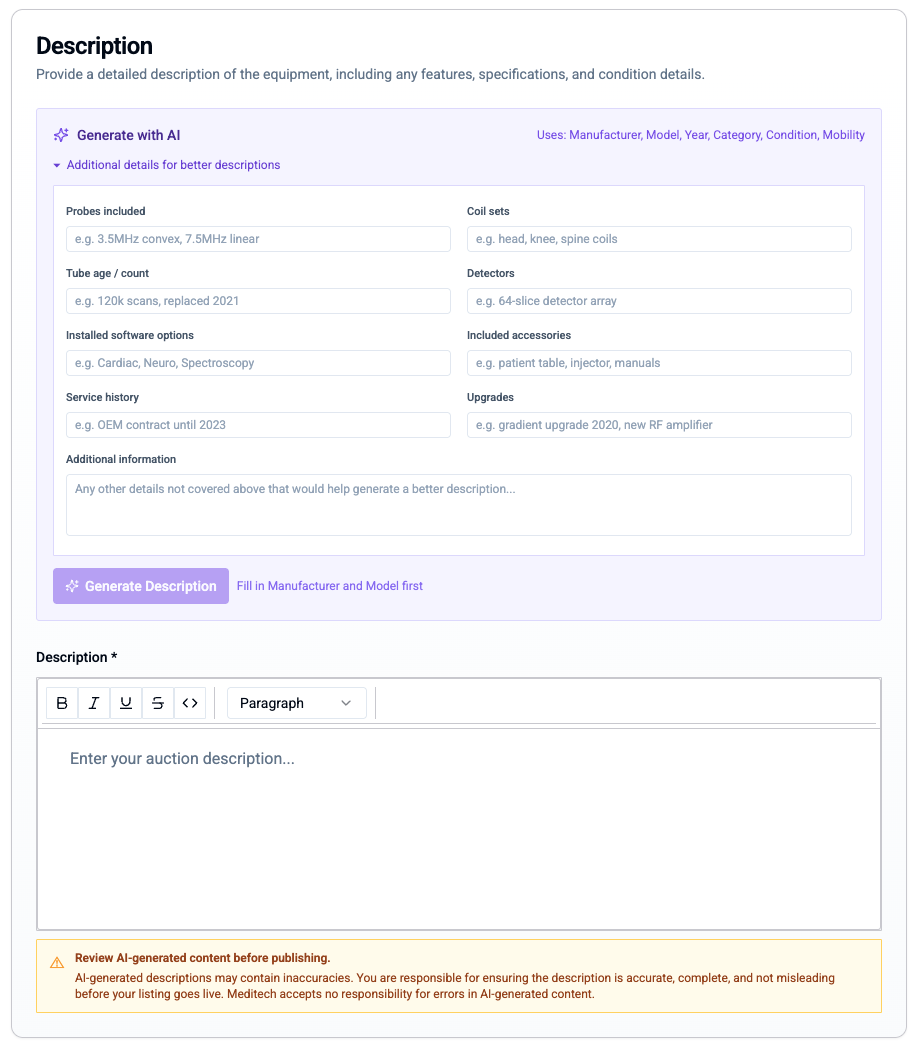
The description that is created should be reviewed before submitting as AI's can get things wrong!
Pricing:
- Reserve price - We recommend a Reserve price but it is optional and must be higher than the starting price
- Starting bid - The price you would like the bidding to start at
- Bidding Increment - The preferred bidding increment amount
Aution Duration
- Start Date - Based on any additional services required for the auction, we will determine the earliest possible start date when you make a selection
- Duration - This will determine the length of the auction
- Equipment Availability Date (Optional) - Based on the Start Date and Duration we will restrict the earliest Availability date when selecting an option
Images & Documents:
- Upload at least one featured image (shows on listing cards)
- Add gallery images (buyers can view in detail)
- Attach supporting documents (service records, manuals, etc.)
Step 3: Standard vs Verified Auctions
Standard Auction:
- Self-listed by the seller
- No third-party verification
- Faster to list
- Lower fees
If you item is installed and required removal, some items such as a site survey will be required so that our provider can provide and cost for deinstallation of an item.
Verified Auction:
- Includes professional inspection
- Third-party verification report
- Increases buyer confidence
- Additional verification fee applies
If your equipment is eligible for verification, you'll see "Verified Auction Services" options appear in the form.
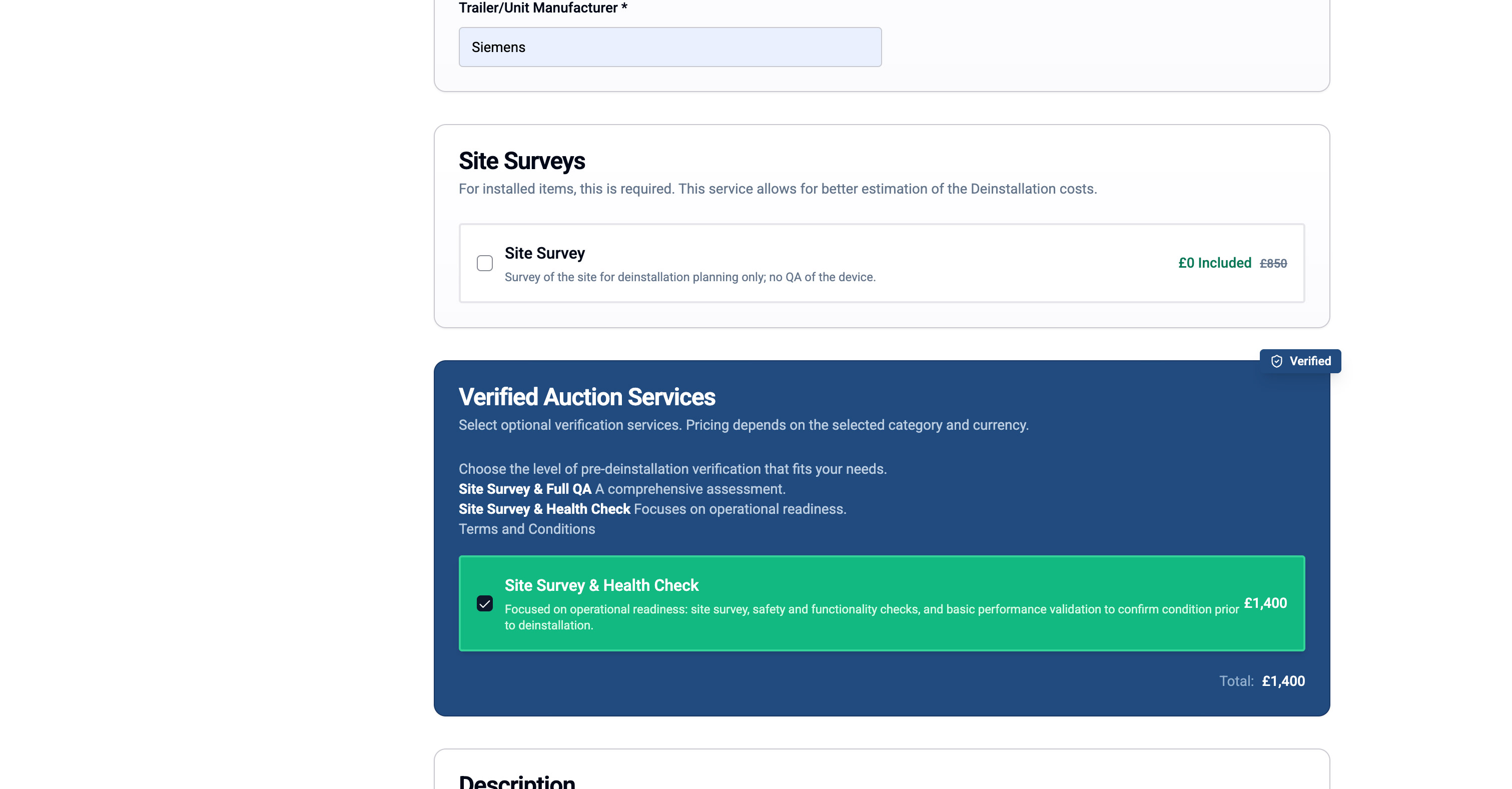
ℹ️ Which should I choose? Verified auctions typically achieve higher sale prices due to increased buyer confidence, especially for high-value equipment.
Some auctions may not be eligible for verified services.
Step 4: Submit Your Auction
Once all required fields are complete:
- Click "Create Auction" to submit
- Or click "Save Draft" to finish later
For Standard Auctions:
- Your listing will be reviewed by Meditech staff
- You'll receive a notification when approved
- The auction will go live at the scheduled time
For Verified Auctions:
- You'll proceed to the payment and booking process