
Browse Auctions & Place Bids
Find the medical equipment you need and place competitive bids. This guide shows you how to search, filter, and bid on auctions.
Step 1: Browse Available Auctions
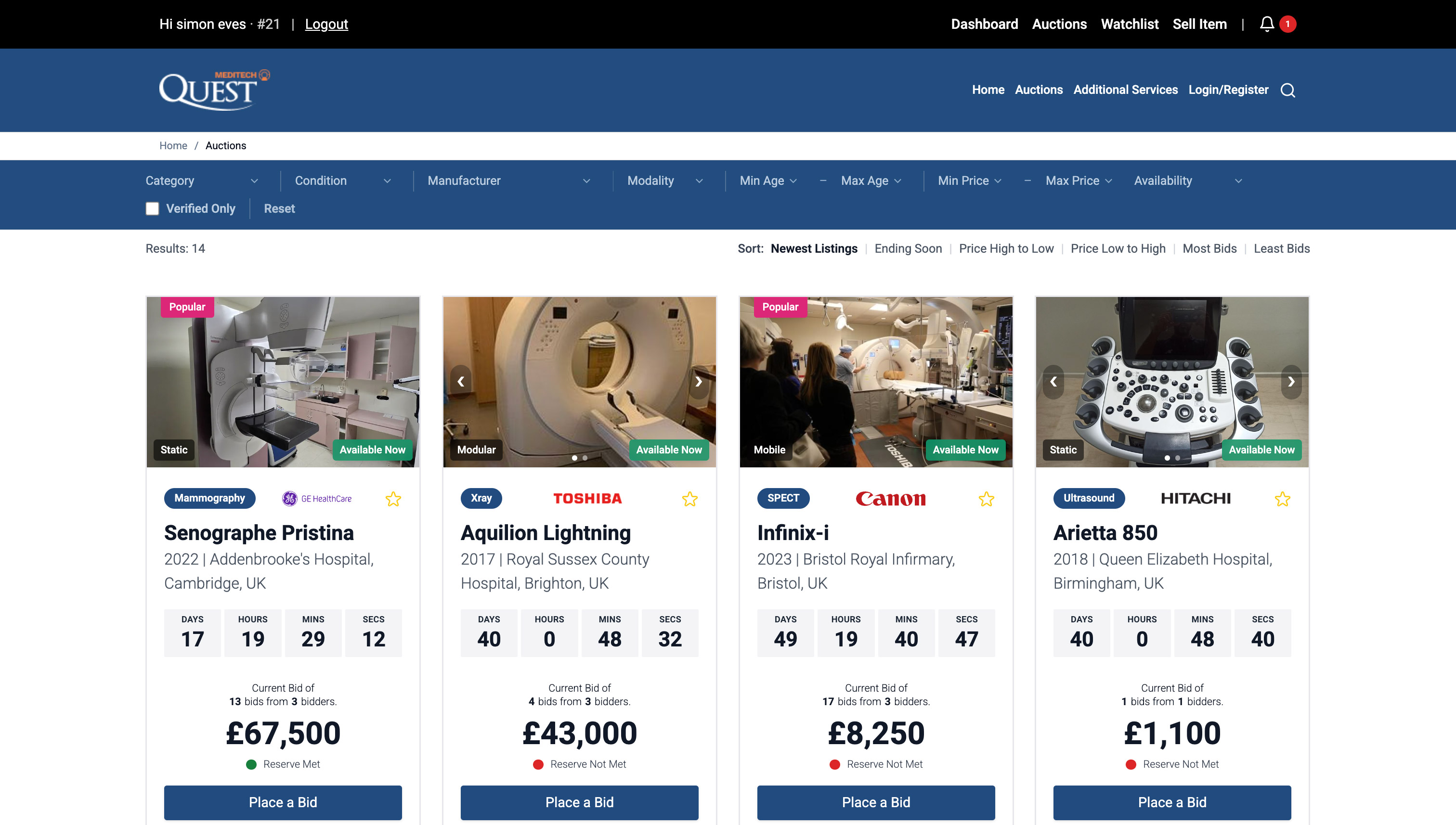
- Click "Auctions" in the top menu
- All live auctions appear as cards showing:
- Equipment image
- Title and type
- Location
- Time remaining
- Current bid
- Reserve status (met/not met)
🔒 Must be logged in to see prices and place bids.
Step 2: Use Filters to Narrow Your Search
Use the filter bar at the top to find specific equipment:
Available Filters:
- Category (MRI, CT, X-Ray, etc.)
- Condition (New, Refurbished, Used)
- Manufacturer (Siemens, GE, Philips, etc.)
- Modality (Imaging, Diagnostic, etc.)
- Min/Max Age (year of manufacture)
- Min/Max Price
- Availability (ending soon, new listings)
- Verified Only (show only verified auctions)

Click "Reset" to clear all filters.
Step 3: Sort Results
Reorder listings using the Sort dropdown:
- Newest Listings
- Ending Soon
- Price: High to Low
- Price: Low to High
- Most Bids
- Least Bids
Step 4: Add Items to Your Watchlist
To save an item for later:
- Click the star icon on any auction card
- The star highlights to confirm it's saved
- View saved items anytime by clicking "Watchlist" in the menu
Step 5: View a Listing
Click on any auction card to see full details:
- Main image gallery
- Complete description
- Equipment specifications
- Condition details
- Time remaining and current bid
- Reserve status
- Verified badge (if applicable)
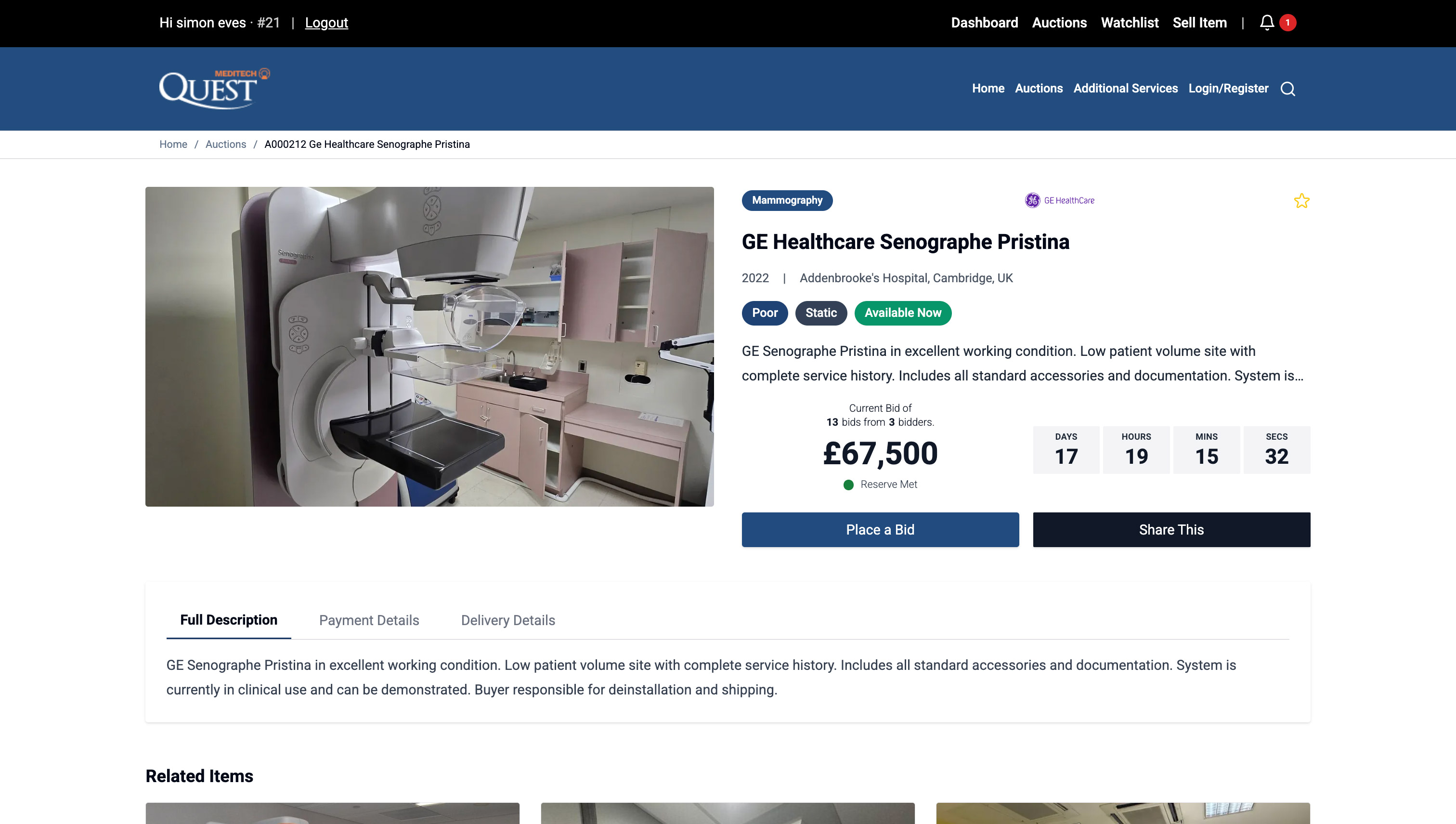
Tabs to explore:
- Full Description - Item details and condition notes
- Payment Details - How payment works
- Delivery Details - Shipping/collection information
Step 6: Place a Bid
Ready to bid? Click "Place a Bid"
The bid window opens showing:
- Current bid amount
- Minimum next bid
- Your bid input field
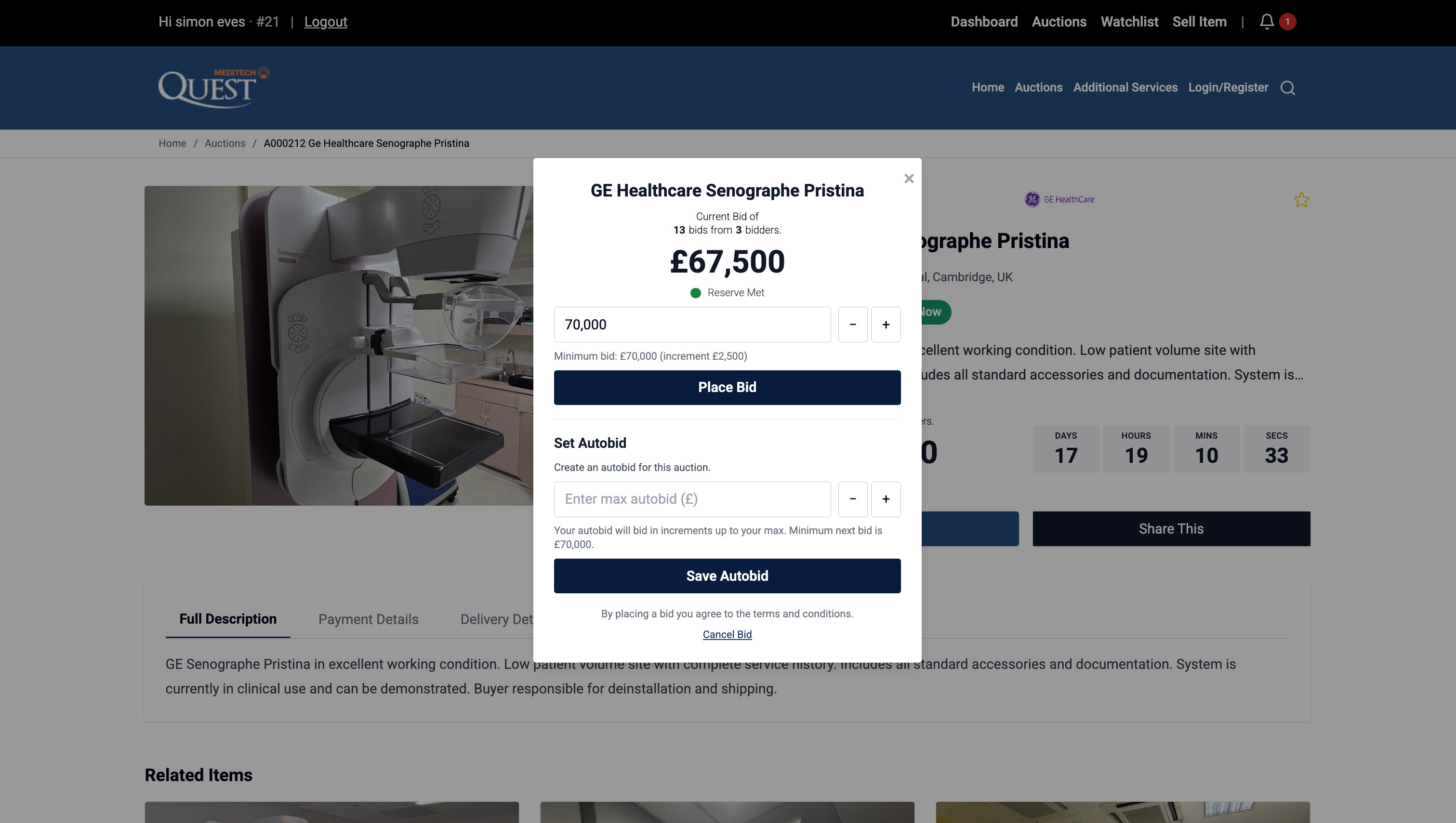
To place your bid:
- Enter your bid amount (or use +/- buttons)
- Click "Place Bid"
- Your bid is submitted immediately
ℹ️ Bid Increments: The system automatically sets minimum bid increases based on the current price.
Step 7: Set Up Autobidding
Don't want to monitor the auction constantly? Use Autobid:
In the bid window:
- Go to "Set Autobid" tab
- Enter your maximum bid amount
- Click "Save Autobid"
How it works:
- The system bids for you automatically in small increments
- You stay the highest bidder up to your maximum
- You're notified if you're outbid beyond your maximum
- You only pay the minimum needed to win, not your maximum
💡 Tip: Set your autobid to the absolute maximum you're willing to pay - you'll only pay enough to beat the next highest bidder.
Step 8: Cancel a Bid (Before Confirming)
Changed your mind before confirming?
- Click "Cancel Bid" at the bottom of the bid window
- The window closes without placing a bid
⚠️ Important: Once a bid is confirmed, it cannot be cancelled. Bids are binding commitments.